Install apps from Microsoft APP Store offline
Prerequisites
- The operating system version is Windows 10 or above
- Can access the Internet normally
- PowerShell
Summary of steps
- Get the application APP connection in MicroSoft APP Store
- Download APP application
- Add app in PowerShell
Operation steps
Open the Microsoft Store page and search for the APP you want to download.
https://apps.microsoft.com/home?hl=en-us&gl=US
例如Spotify:
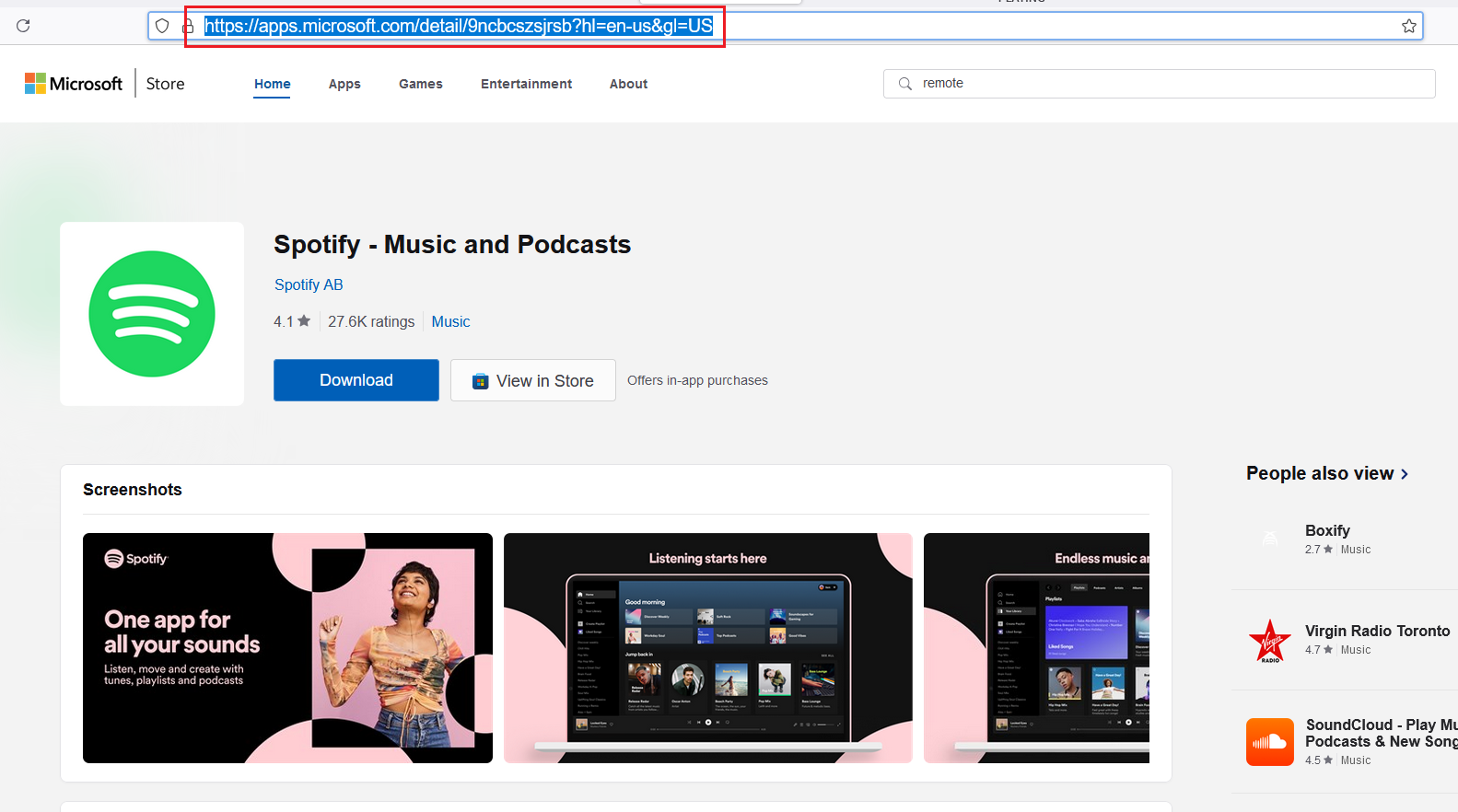
Copy the address bar and remove it? What follows
Paste into the search bar of https://store.rg-adguard.net/ URL Click to search
右侧选择框中的四个选项分别代表:
Fast:Windows Insider Fast 通道,属于最新开发版;

Slow:Windows Insider Slow 通道,相对 Fast 较稳定;

 RP:Release Review 也是微软软件发布的一个通道,软件成熟度较高,待 RP 过后,就会正式发布。

Retail:指正式发布的包,也是系统默认的等级。
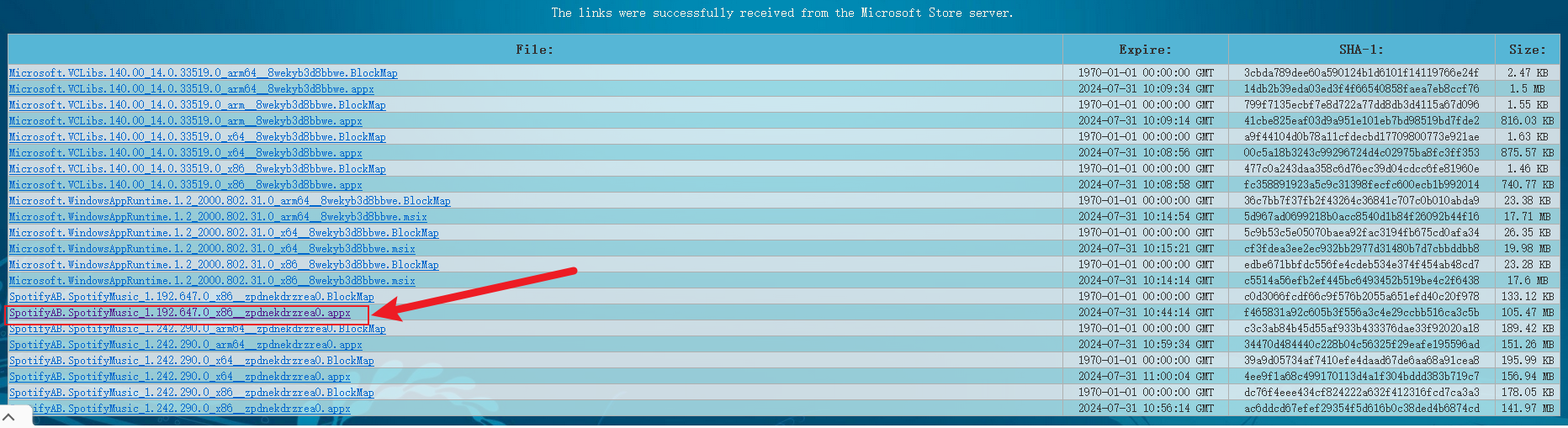
Click to download in appx format
The file extensions .eappx, .appxbundle, .emsix, and .emsixbundle are all encrypted installation packages and cannot be installed directly without purchasing a license (such as paid applications or games)
Install APP in PowerShell
在Powershell中输入命令
# 使用命令 Add-AppxPackage -Path [文件路径],比如
Add-AppxPackage -Path "C:\Tools\SpotifyAB.SpotifyMusic_1.192.647.0_x86__zpdnekdrzrea0.Appx"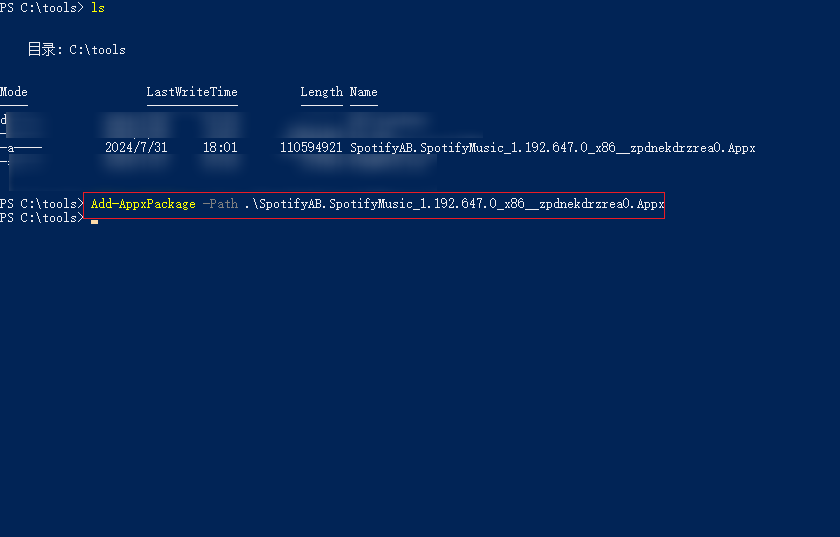
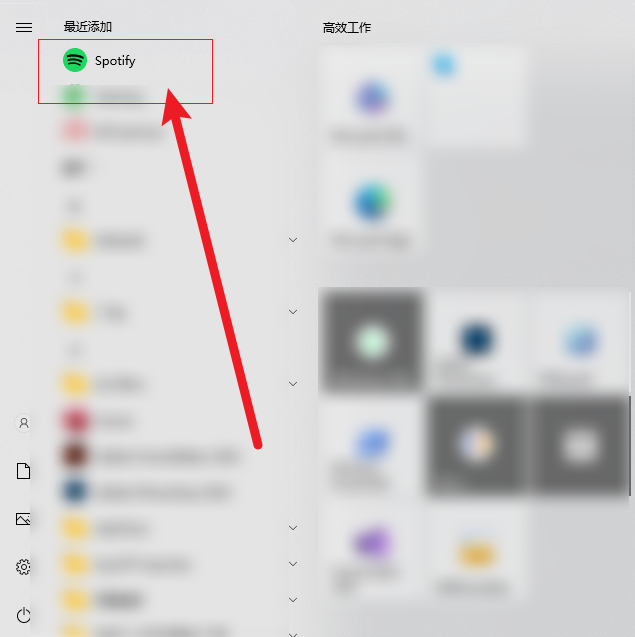
Then you can see the app you just installed in the start menu bar
Reference:
https://blog.dejavu.moe/posts/install-uwp-offline/