 Because the Frp client was started using batch processing before, every time the computer is restarted, it needs to wait until you log in before it can be started.
The purpose is to start the Frp client directly after the operating system starts. In order to solve this problem, use nssm to install the Frp client into the windows service and start it as a service. In this way, it can be started directly after the computer starts.
Because the Frp client was started using batch processing before, every time the computer is restarted, it needs to wait until you log in before it can be started.
The purpose is to start the Frp client directly after the operating system starts. In order to solve this problem, use nssm to install the Frp client into the windows service and start it as a service. In this way, it can be started directly after the computer starts.
Directory
- Prerequisites
- Installation process
- Verification and citation
Prerequisites
- Frp server and client https://github.com/fatedier/frp
- nssm program https://nssm.cc/download
- Configure the corresponding Frp client information according to the information of the Frp server.
Installation process
Step 1
After configuring the Frp client information under the Windows operating system, use the command line to enter the nssm directory, as shown below:
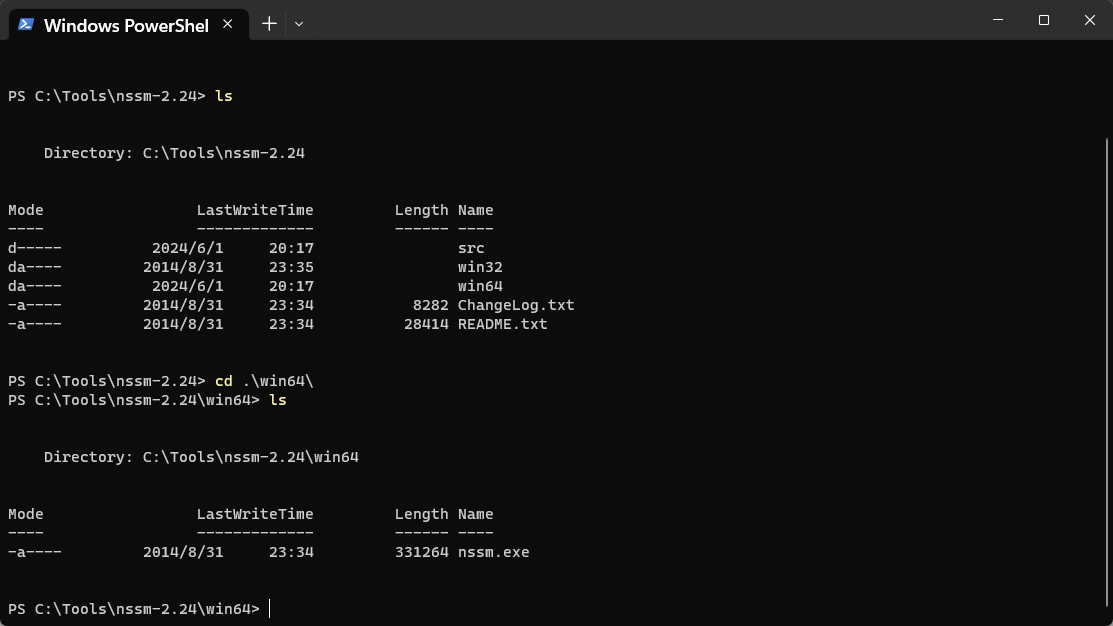
Note: Please enter the corresponding directory according to the actual situation.
Step 2
Install the service via the command line:
nssm install MyFirstServiceStep 3
After entering the command in Step 2, the system will open the nssm GUI. Just fill in the relevant information about the service:
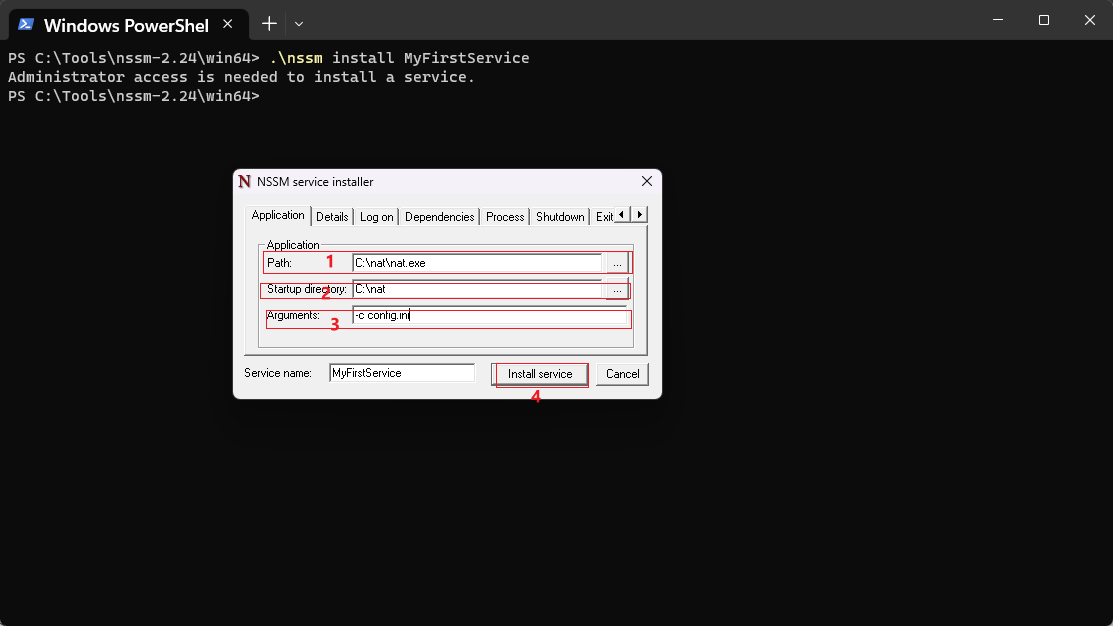
- Program path
- Program working directory
- extra parameters
“Details” at the top is the detailed description and settings of the service. After filling in the above information, the service installation is complete. Remember to run nssm in administrator mode.
Validation and application
- Enter “services.msc” on the Windows command line to open the Windows service management window.
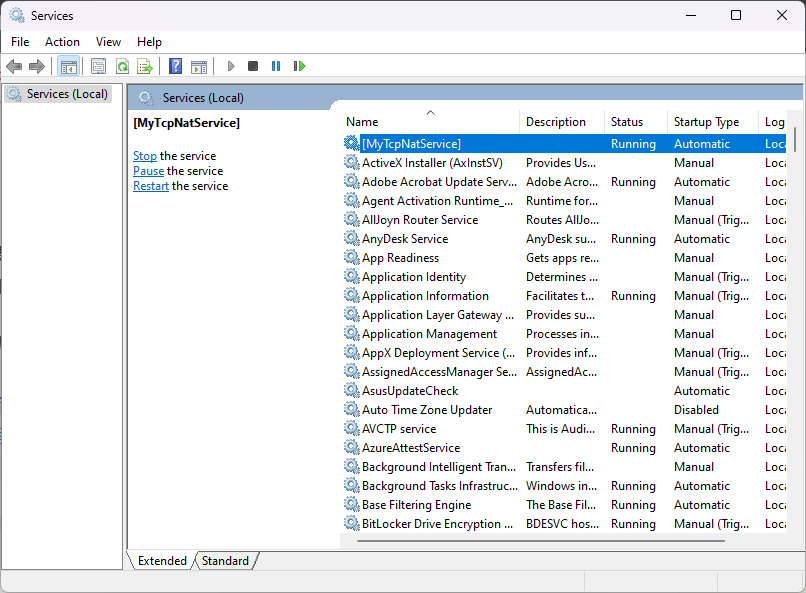
- You can judge from the above picture that the service has been added successfully. In addition, you can also view the frp running log in the frp root directory.
Quote
- Frp server and client https://github.com/fatedier/frp
- nssm program https://nssm.cc/download
This is a simple usage note to quickly create services under Windows using nssm.