Pangolin installation and usage demonstration
Prerequisites
In order to follow the operation and configuration instructions in the video, the following conditions are optional. Video content: https://www.bilibili.com/video/BV1cAJHz8EAj/
- A cloud server with an independent public IP address
- a domain name
- A Linux server running in the local LAN (the blogger’s is Ubuntu 20.0.1)
- A Windows computer running Ollama/Deepseek
- keep smiling
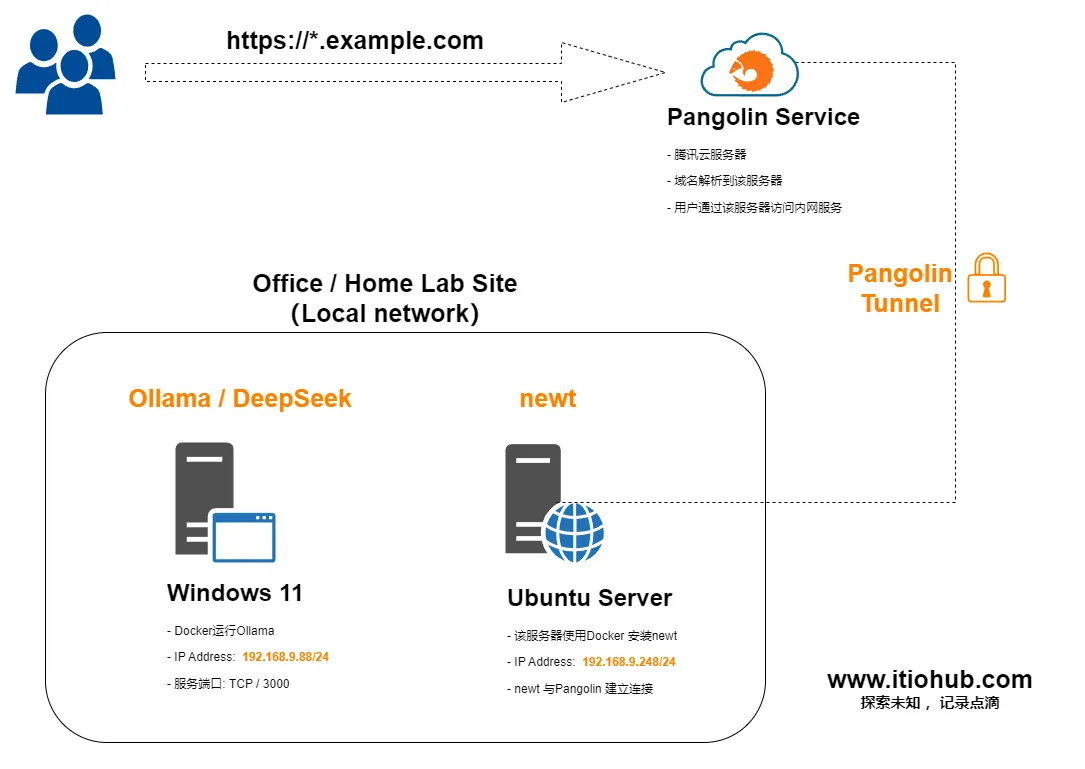
Figure: Simple illustration
Introduction
Project: https://docs.fossorial.io/overview
With Pangolin at its core, the Fossorial system is a self-hosted tunnel reverse proxy with identity and access management capabilities designed to securely expose private resources through an encrypted WireGuard tunnel running in user space. Imagine a self-hosted Cloudflare tunnel. Pangolin uses Traefik under the hood for the actual HTTP proxy. The Badger plugin provides a way to authenticate each request using Pangolin. The second service, Gerbil, provides a WireGuard management server that Pangolin can use to create peers to connect to. Finally, there’s Newt, a CLI tool and Docker container that connects to Newt and Gerbil entirely in user space via WireGuard and proxies your local resources. This means you don’t need to run a privileged process or container to expose your service!
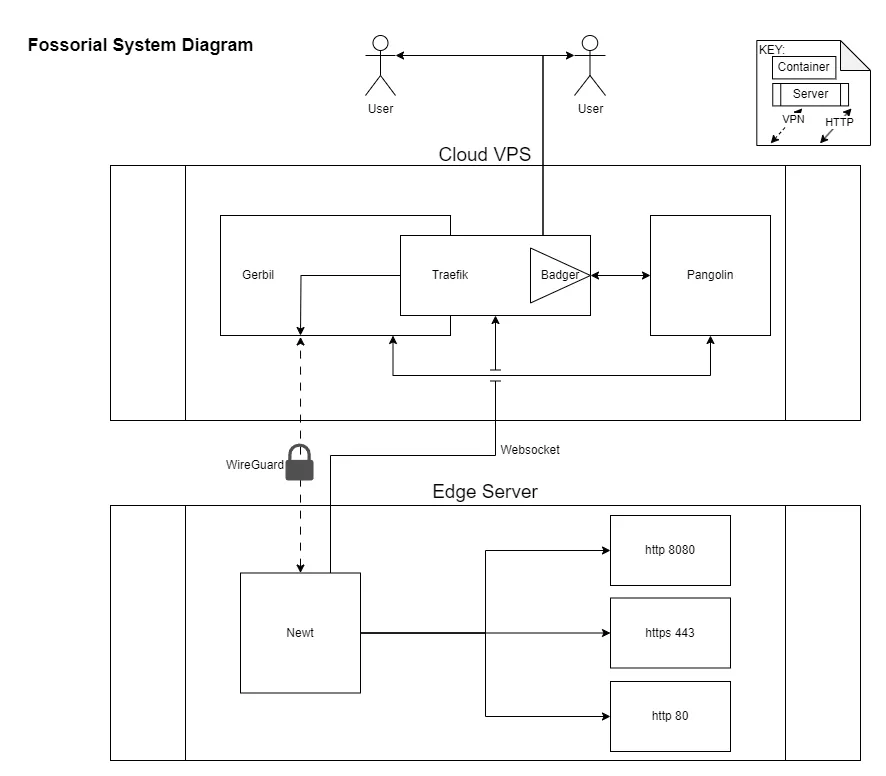
Figure: Fossorial system Diagram
start
Download the installation script of Pangolin server on Tencent Cloud Server
# 下载并执行
wget -O installer "https://github.com/fosrl/pangolin/releases/download/1.2.0/installer_linux_$(uname -m | sed 's/x86_64/amd64/;s/aarch64/arm64/')" &&
chmod +x ./installer
Add DNS records
Note: Proxy needs to be turned off
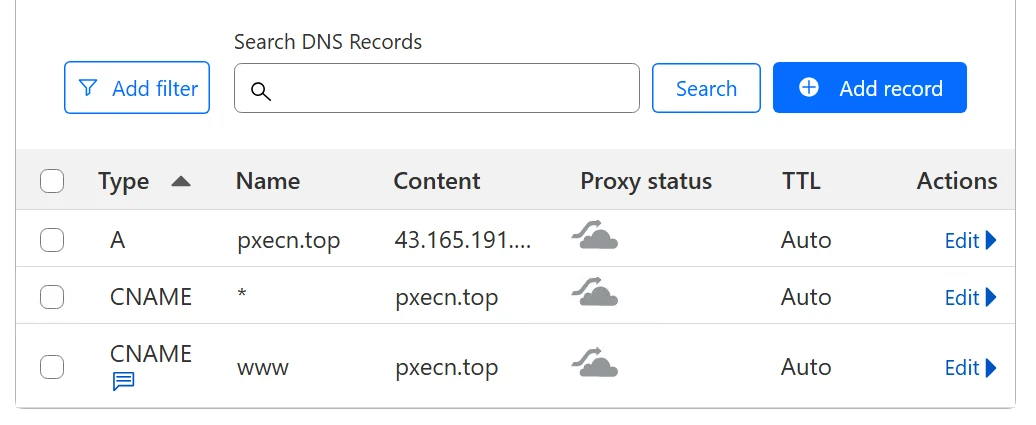
Figure: Cloudflare DNS Records
Cloud server security group open port
- TCP
80 , 443 - UDP
51820
Access the Pangolin management interface for configuration
The management domain name you configured when installing the Pangolin server
For example: https://pangolin.example.com
Enter the Pangolin administrator account password you set
- Create ORG
- Create Site
- connection tunnel
- Create resources
- Add goals and authorizations
- Start accessing intranet services through subdomain names
Summary
The installation process of Pangolin is simple and convenient, without complex configuration. It is deployed through Docker containerization, runs independently and does not affect other services.
During use, intranet services can be exposed in a very short time without any need to install any program on the target server of the intranet; at the same time, it providesFlexible permission control, easy to manage user access and operation permissions. In general, Pangolin takes into account ease of use, efficiency and security requirements.