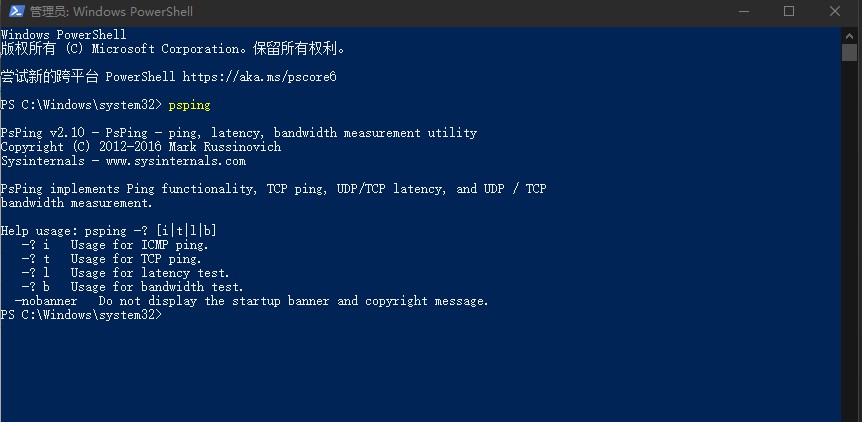
This article mainly introduces Microsoft’s testing tool Psping.
The main functions of this tool include: ICMP Ping, TCP Ping, delay test, bandwidth test
An application scenario needs to be explained: Since ICMP is prohibited in the Windows Azure data center, it is very useful to use Psping’s TCP Ping function to test connectivity or troubleshoot.
Tool download address: http://technet.microsoft.com/en-us/sysinternals/jj729731
After downloading the PSTools.zip package, place it on any local disk and unzip it;
Use the CMD command line tool to enter the folder path where PSTools is located, and enter psping separately. You can see the help commands for the four main functions of psping. The four functions are ICMP Ping, TCP Ping, delay test, and bandwidth test.
【Part.1】ICMP ping function
Enter psping -? i to obtain ICMP ping related parameters
psping -4 -n 10 -w 2 -h 180.76.76.76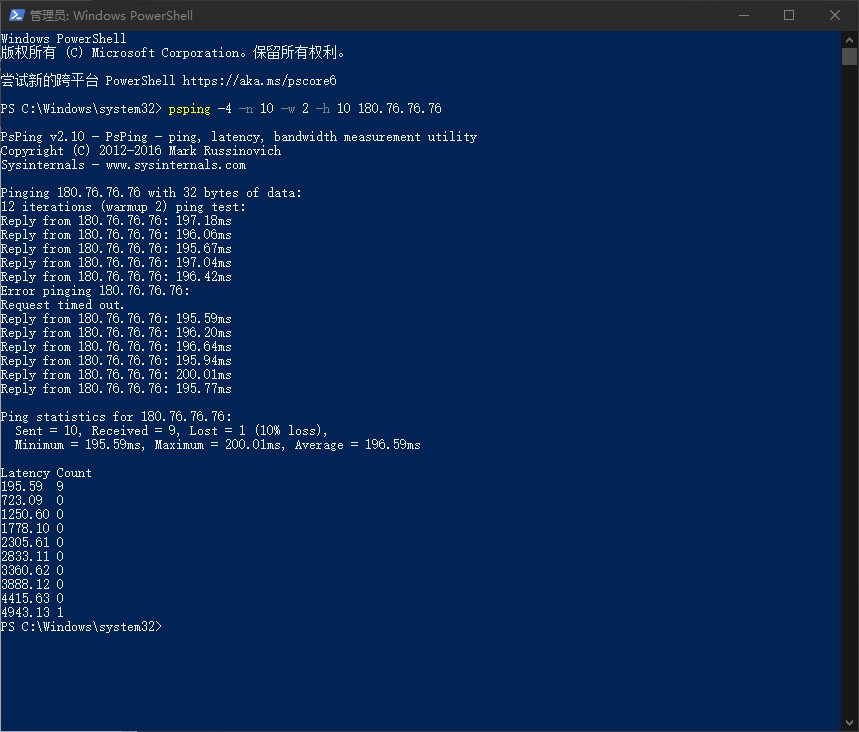
- -4 represents forcing the use of IPv4 connection
- -n represents the number of formal ping packets, or defines using seconds as the unit
- -w represents the number of warm-up ping packets, that is, how many warm-up test connections are performed before the formal test.
- -h represents the minimum and maximum delay milliseconds
The other parameters of ** are explained as follows: **
- -i represents the interval seconds, set to 0 for fast ping
- -l represents the ping packet size, the default unit is byte. Use k as the unit to represent kilobytes (KB) and m as the unit to represent megabytes (MB).
- -q means not outputting values one by one during the ping process
- -t means long ping without stopping
- -6 means forcing the use of IPv6 connection
psping -i 0 -4 -n 10 -w 2 -h 10 -q 180.76.76.76Since the -i 0 parameter is set, the results are generated instantly. If -q is set, the intermediate output process will no longer be displayed and the results will be output directly.
**-l and -t and -6 are not demonstrated here. **
【Part.2】TCP Ping function
Use psping -?t to get help information
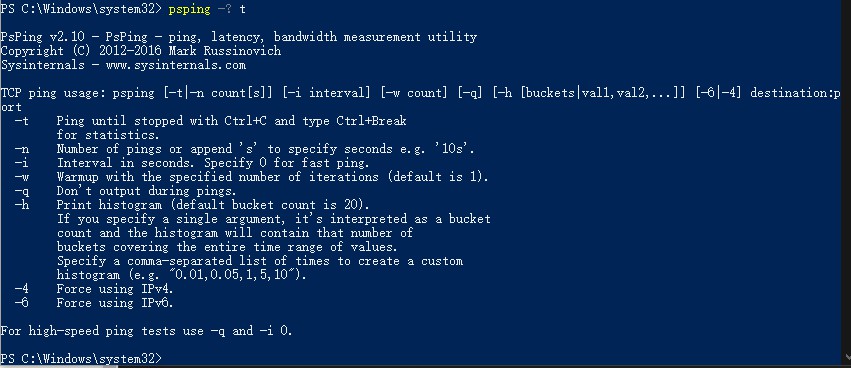
psping -n 10 -w 2 -h 10 42.159.27.213:443The same parameter definitions as the ping function:
- -n represents the number of formal ping packets, or defines using seconds as the unit
- -w represents the number of warm-up ping packets, that is, how many warm-up test connections are performed before the formal test.
- -h represents the minimum and maximum delay milliseconds
- -i represents the interval seconds, set to 0 for fast ping
- -l represents the ping packet size, the default unit is byte. Use k as the unit to represent kilobytes (KB) and m as the unit to represent megabytes (MB).
- -q means not outputting values one by one during the ping process
- -t means long ping without stopping
- -4 represents forcing the use of IPv4 connection
- -6 means forcing the use of IPv6 connection
【Part.3】Delay test
Use psping -? l to get help information during latency testing.
I used Azure VM to build a website and deployed it on port 8081, 42.159.27.213:8081
psping -l 1500 -n 300 -h 10 42.159.27.213:8081- -l 1500 means that the size of the data packets I send is 1500 Bytes each. The MTU (Maximum Transmission Unit) of TCP connection in Layer 2 Ethernet is usually 1500 Bytes as a unit.
- -n 300 means relaxing 300 packets
- Then 300*1500Bytes=450000Bytes, most of them respond within 5ms
【Part.4】Bandwidth test
psping -? b
psping -b -l 1500 -n 15000 42.159.27.213:8081- -b means a bandwidth test will be performed
- -l 1500 means using a packet of size 1500Bytes
- -n 15000 means using 15000 data packets
The output results show that the bandwidth between my PC and the Azure VM when I tested is 470KB/s. In fact, the PC at my workstation is limited to 500KB/s by the company’s IT, so it reaches the limit of my PC’s bandwidth.